Placeholder
Empty state component used to display informational messages, upgrade prompts, or guide users when content is unavailable. Supports custom images and action buttons.
Basic Examples
Simple placeholder with title only, or with description and action button.
No available domains.
You don't have any messages yet…
No items found
Try adjusting your search or filter to find what you're looking for.
Upgrade Prompts
Placeholders used to encourage users to upgrade their plan for premium features.
Unlock QR Code Creation
QR codes are available only on the PRO plan, upgrade to access the full toolkit.

Unlock Business Card Creation
Digital business cards are available exclusively on the PRO plan.
Gallery Placeholders
Gallery variant automatically creates a container with outer dashed border (brand-1) and renders multiple placeholder items with inner dashed border (gray-200). Pass an array of items to the component.
No images yet
Upload your first image to get started.
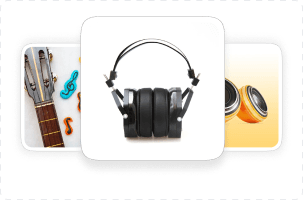
No audio files
Add audio files to your collection.
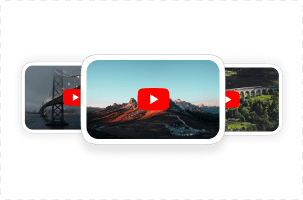
No videos
Add YouTube videos or upload your own.
Usage Example
Example code for implementing Placeholder components
import { Placeholder, Button } from '@monorepo/ui/DesignSystem';

// Basic placeholder with image
<Placeholder
  title="No available domains."
  image="/components/placeholder/no-available.png"
/>

// With description
<Placeholder
  title="You don't have any messages yet…"
  image="/components/placeholder/no-massages.png"
/>

// With action button
<Placeholder
  title="No items found"
  description="Try adjusting your search or filter."
  action={<Button size="sm">Clear Filters</Button>}
/>

// Upgrade prompt with image and action
<Placeholder
  title="Unlock QR Code Creation"
  description="QR codes are available only on the PRO plan."
  image="/components/placeholder/qr.png"
  action={<Button size="md">Upgrade to PRO</Button>}
/>

// Gallery placeholder - pass array of items
<Placeholder
  variant="gallery"
  items={[
    {
      title: "No images yet",
      description: "Upload your first image to get started.",
      image: "/components/placeholder/gallery-type-image.png",
      action: <Button size="sm">Upload Image</Button>,
    },
    {
      title: "No audio files",
      description: "Add audio files to your collection.",
      image: "/components/placeholder/gallery-type-audio.png",
      action: <Button size="sm">Add Audio</Button>,
    },
    {
      title: "No videos",
      description: "Add YouTube videos or upload your own.",
      image: "/components/placeholder/gallery-type-Youtube.png",
      action: <Button size="sm">Add Video</Button>,
    },
  ]}
/>
Props
| Prop | Type | Default | Description |
|---|---|---|---|
| title | string | - | Title text (for default variant) |
| description | string | - | Optional description text (for default variant) |
| image | string | - | Optional image source path (for default variant) |
| action | ReactNode | - | Optional action button (for default variant) |
| variant | 'default' | 'gallery' | 'default' | Variant type - 'gallery' renders multiple items with outer brand-1 border |
| items | PlaceholderItem[] | - | Array of items for gallery variant (each item has title, description, image, action) |
| className | string | - | Additional CSS classes |
Use Cases
Empty States
Display when a list, gallery, or collection has no items. Helps users understand why content is missing and what actions they can take.
Upgrade Prompts
Encourage users to upgrade their plan to access premium features. Include clear descriptions of benefits and prominent upgrade buttons.
Search Results
Show when search or filter operations return no results. Provide suggestions for refining the search or clearing filters.
Onboarding
Guide new users through their first steps. Use images and action buttons to make the next steps clear and inviting.
Available Images
- /components/placeholder/no-available.png
- /components/placeholder/no-massages.png
- /components/placeholder/qr.png
- /components/placeholder/business-cards.png
- /components/placeholder/gallery-type-image.png
- /components/placeholder/gallery-type-audio.png
- /components/placeholder/gallery-type-Youtube.png